

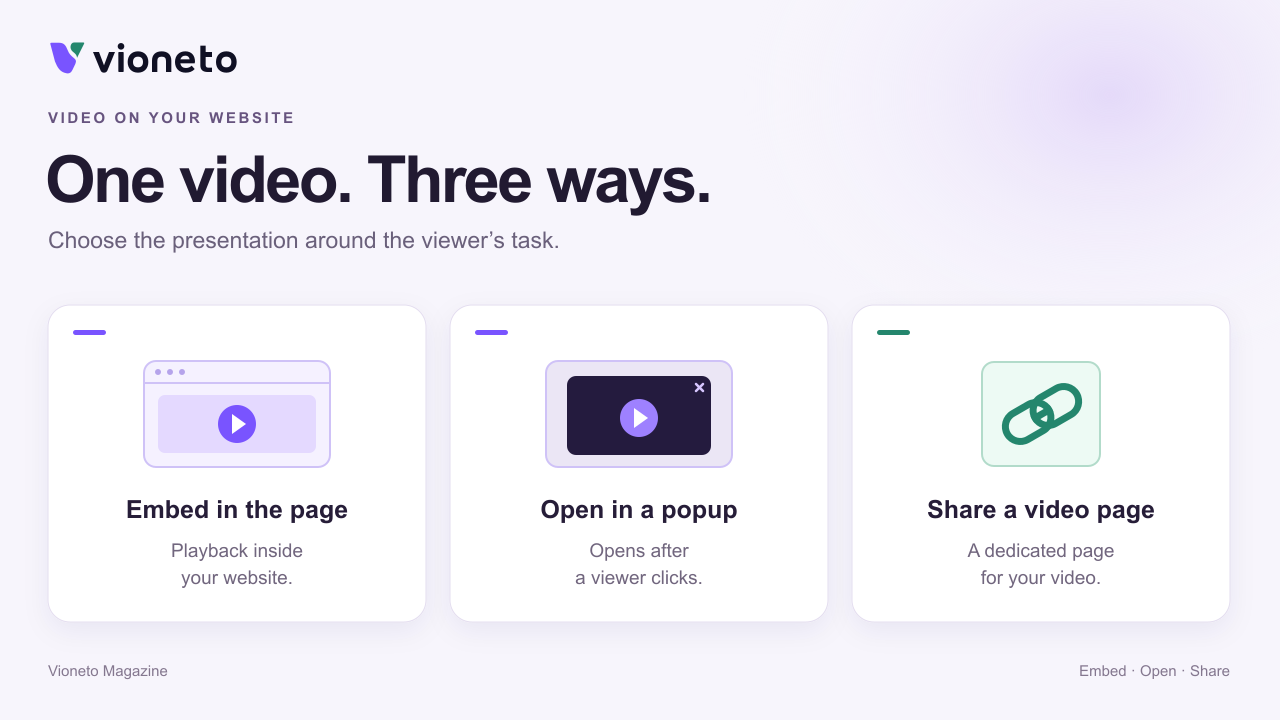
You have finished a product demonstration, a customer guide or a lesson. Where should people watch it? They might need the video directly within your website, in a window that opens after a click, or on a separate video page.
These choices serve different purposes. An in-page player can support an explanation. A popup keeps an offer page focused. A dedicated video link helps when you want to send something without building another page on your own website. You do not need to upload a fresh copy of the video for each approach.
Choose the format around the viewer’s task
Embed the player when the video belongs in the page
An embedded player sits where you place it in your website. Visitors keep the surrounding context: they can read a product description and watch the demonstration just below it.
An iframe can display the player page within your website. You do not have to upload the video file into your website editor for this. What matters to your audience is a useful position in the page and a player that fits the available space on a small screen.
Technical background: the iframe element on MDN
Use a popup when a click should open the explanation
A popup is a window over the current page. A button such as “Watch video” lets visitors decide whether to open the extra explanation. This is useful when the video adds detail without needing to dominate the page.
The Vioneto popup loads its player when it opens, and playback starts manually. Closing the popup stops playback and unloads the player. Opening it again starts from the beginning. Consider whether that suits the content, particularly for a longer training session.
Copy the complete popup code. It contains the button, the window and the scripts that control it. Your website editor needs to allow that code. A normal text block, or an editor that removes scripts, cannot turn it into a working popup player.
Share a video page when you need a standalone link
A video page gives the video its own setting, using the page content and appearance you saved. You can send its viewer link in a message or place it in a customer area. This does not require a new content block on your own website.
For related videos, a folder page can present a series. You choose its videos, their order and the introduction. A series does not replace the individual sharing requirements: its selected videos still need video access and a shared video page.
Prepare it in Vioneto
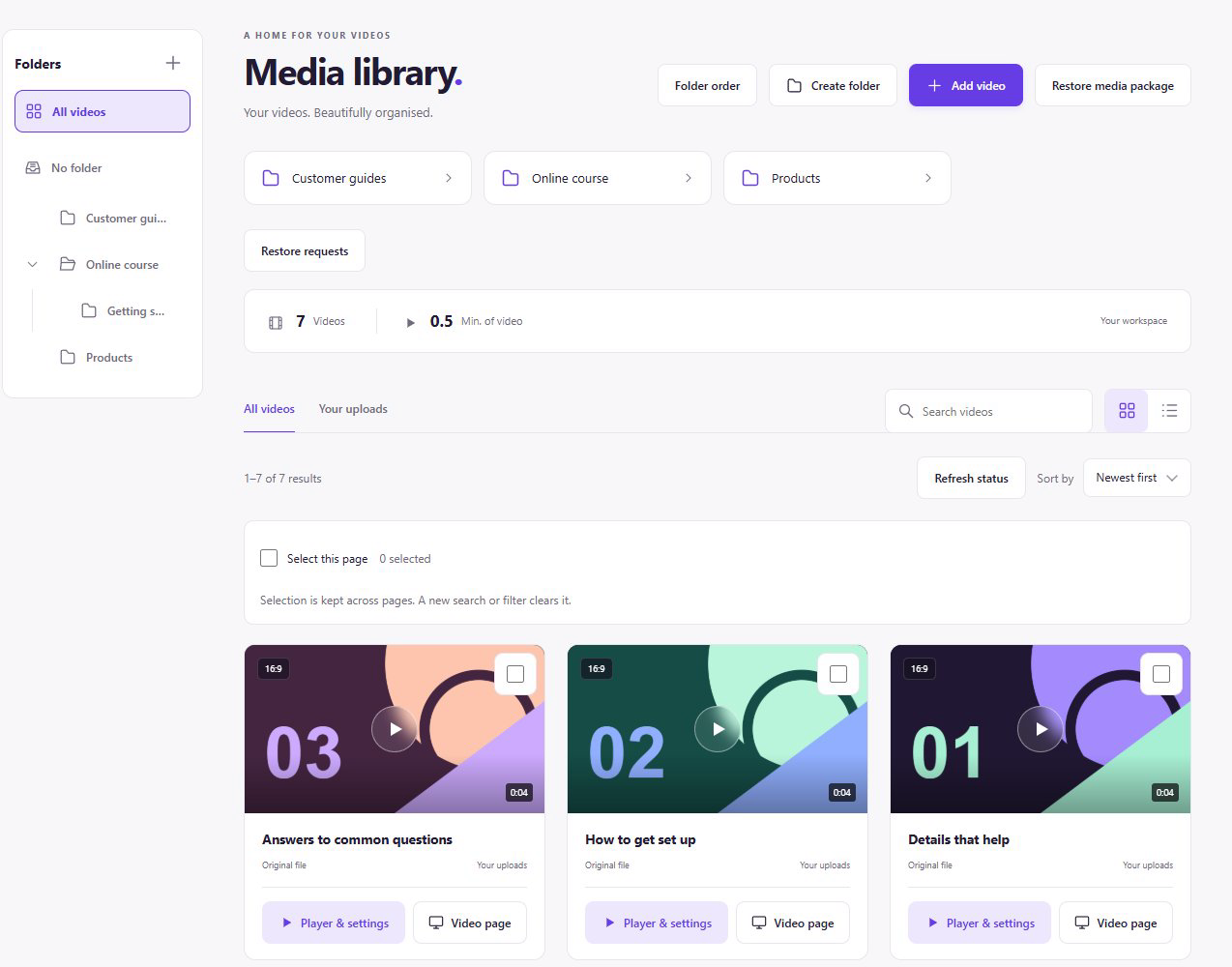
Start in the media library with the video you want to use. A clear title and a suitable folder make the right clip easier to find later, especially when similar versions, different products or several course sections sit alongside one another.
- Prepare the video: wait for processing to finish and check the content in the preview.
- Set up the player: save its appearance, start behaviour and any available subtitles or chapters.
- Choose access deliberately: open “Access & embedding” and confirm the required sharing and protection settings.
- Choose the output: copy the player or popup code. For a dedicated video page, also save and confirm that page’s sharing.
- Check the destination: open the finished website or viewer link without your customer sign-in.
Place the complete embed code in a suitable HTML or embed area in your website editor. Make the surrounding container fit your layout. Then check the actual published page, because an editor’s preview may behave differently.
Keep previews, saving and sharing separate
A private preview helps you design the result. It is not a viewer link and may require a sign-in to your customer account. Sending that address can leave another person looking at a sign-in page instead of the video.
Saving a video page and sharing it are also separate actions. A saved draft does not automatically change the page version that viewers can already see. If an older heading or appearance remains visible, first check whether you have shared the new saved draft again.
Check access as a viewer. A private browser window helps keep your customer sign-in out of the test. If access is restricted by domain, test the embed on the website you actually allowed: opening the video link directly does not provide that embedding context.
A popup or folder page does not override password, domain or availability rules. Choose the presentation around the viewing experience, and access around who should be able to watch. They are separate decisions.
A clear start button is more useful than unexpected sound
Provide a visible way to start playback. Browsers may block automatic playback with sound, so enabling autoplay does not guarantee it on every device. Also check whether the poster image and button explain what will happen after a click.
Why automatic playback can be limited: MDN
Check loading and controls on the actual page
Loading several players immediately can create unnecessary work. Load supporting content when it is needed. The Vioneto popup opens its player after a click. An important video at the top of a page, however, should not automatically be held back by delayed loading.
Background on loading video when it is needed: web.dev
Captions should convey speech and the important sounds needed to understand the video. A transcript can help too. If essential information appears only in an image or on-screen text, provide an appropriate spoken or written explanation. Check the path to the video and its controls with a keyboard as well.
Making media accessible: W3C WAI
Check these points before sharing
- Does the page contain the right video and version?
- Does the player fit the available space on a smartphone?
- Can viewers start, pause and understand the controls?
- Are captions and essential explanations available and readable?
- Does the popup open and close cleanly if you use that format?
- Does viewer access work without your customer sign-in and in the intended domain context?
- Does the video page or series show the version you actually shared?
Use an embedded player for an explanation within a page, a popup for detail opened after a click, and a video page for a standalone destination. Use a series when several videos belong together. Let the viewer’s task determine the presentation.